Create a document
Create a document in Office when you want to write in the browser and keep one shared version in Open Suite.
Open Documents
From the portal, click Office → Documents.
Swipe or scroll the screenshot to see every detail.
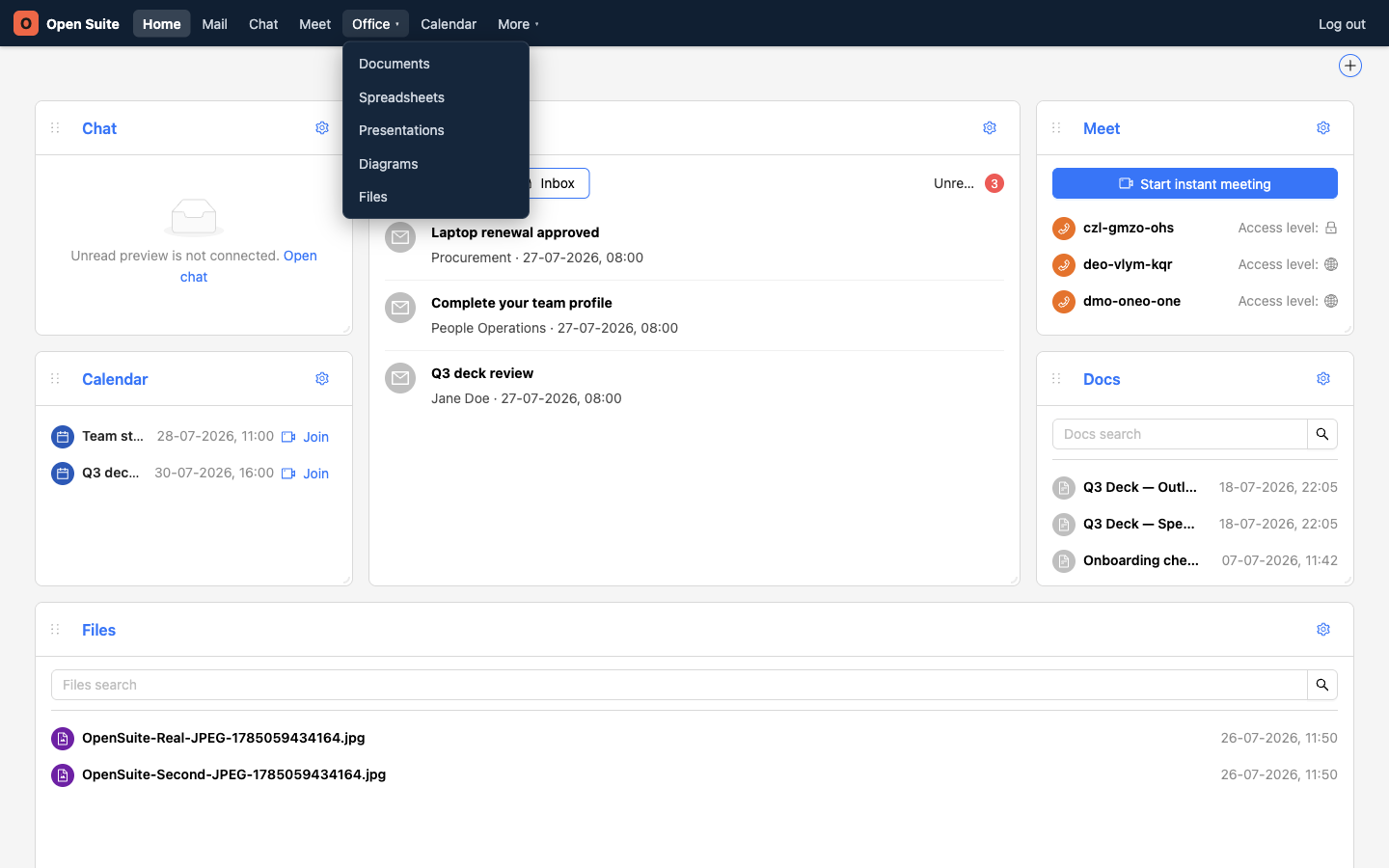
Office opens the app menu.
Documents opens the document workspace.
Create the document
- In Documents, open the folder where the document should live.
- Click New.
- Choose Document.
- Enter a useful file name.
- Confirm the name to open the document in the browser editor.
Swipe or scroll the screenshot to see every detail.
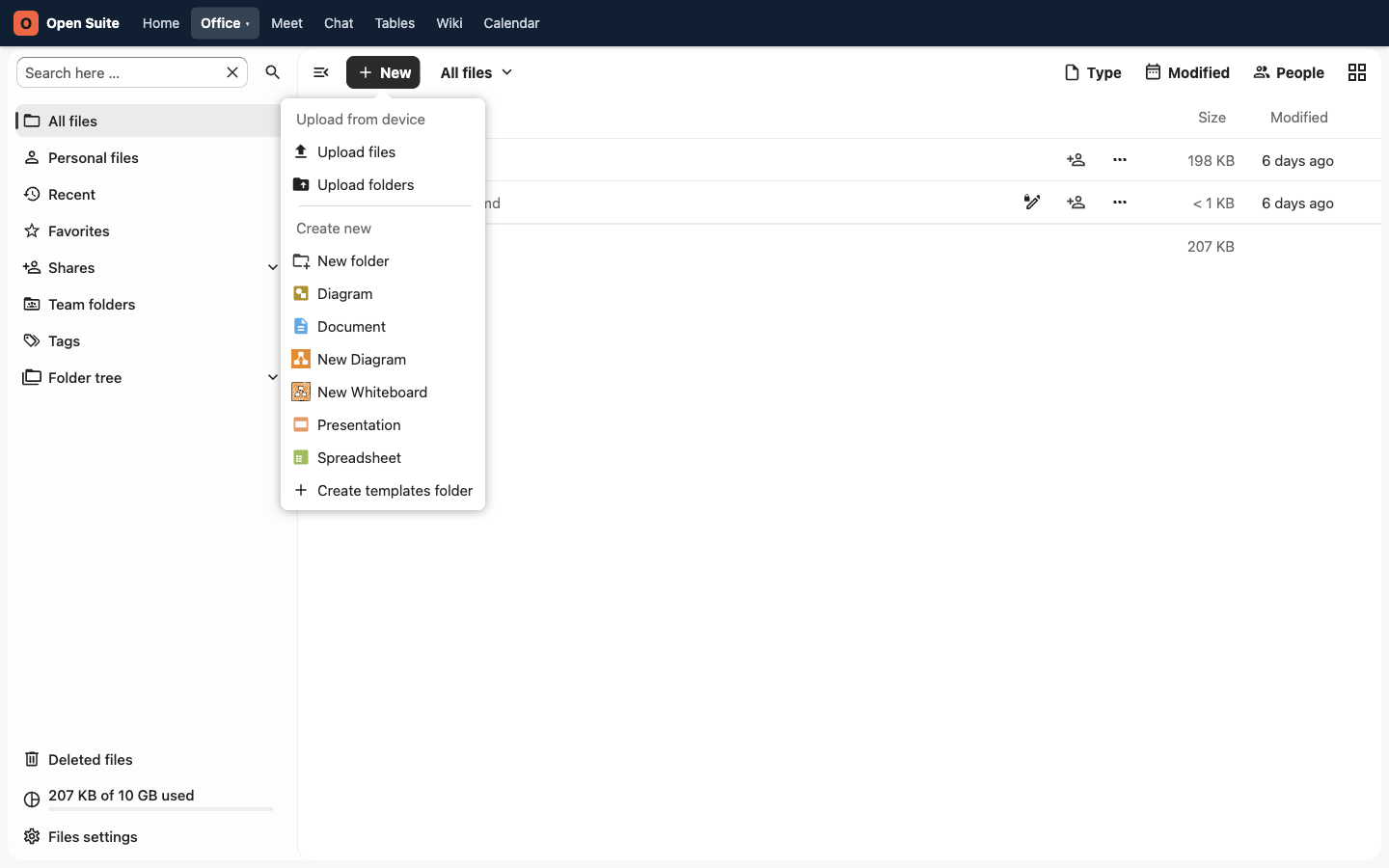
New opens the creation menu.
Document creates a text document in the current folder.
Name files clearly
Use a name that still makes sense in search results later. Good names include a topic, team, or date:
Q3 project planHiring notes June 2026Board report draft
Avoid names like Document, Notes, or Final because they become hard to
find.
Edit the document
The document opens in the browser editor. Type as you would in a desktop word processor. Routine changes save back to the Open Suite file automatically. Wait for the editor's saved status before closing the tab.
If the document opens in a new tab, keep the Documents or Files tab open as well. Return there to rename, share, move, or download it.
Share the document
- Return to Documents or Office → Files.
- Find the document.
- Click the share icon on the document row.
- Add people or groups.
- Adjust their permissions if needed.
See Share files and folders for detailed steps and public-link precautions.
Download a copy
To save a copy in another format, use File → Download as in the editor and choose the format you need. To download the current file without converting it, use the file row's three-dot menu in Files and choose Download.
Recover your work
If you close the browser by accident, reopen Office → Documents or Office → Files and click the document name. The latest saved version opens again.