Join a video call
Use Meet for browser-based video calls. You can join from a calendar event or by opening Meet from the portal.
Join from Calendar
- Open the event in Calendar.
- Click the Meet URL in the event location.
- Wait for Meet to open in a new tab.
Join from Meet
- Click Meet in the top navigation.
- Click Join a meeting.
- Enter the meeting link or code you received.
- Confirm to open the room.
The existing demo screenshot below predates the latest wording. Its Create a meeting action is now split into Start an instant meeting and Schedule meeting; the join action still opens the link-or-code flow.
Swipe or scroll the screenshot to see every detail.
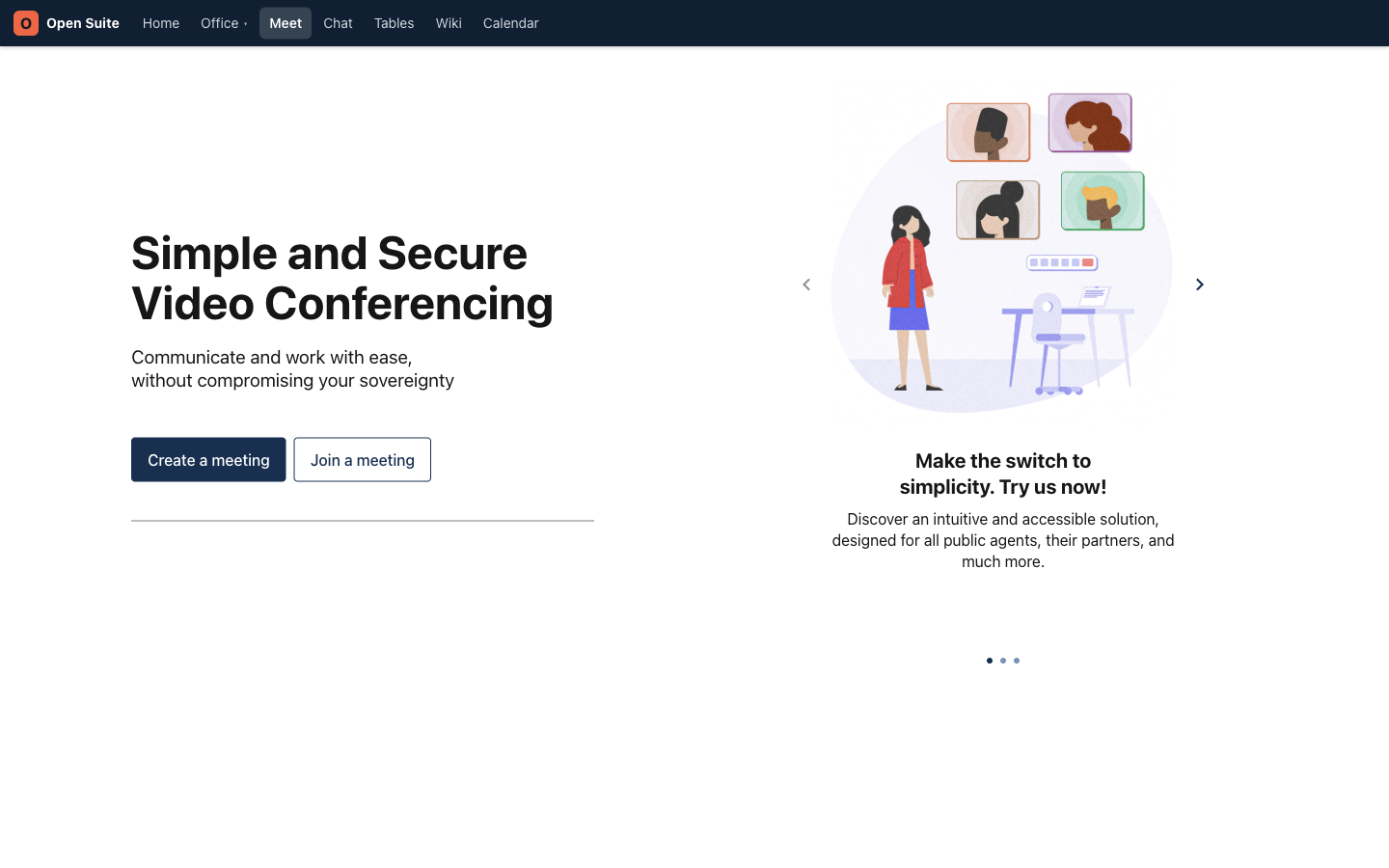
Create flow used the earlier Create a meeting label shown here.
Join flow accepts a Meet link or meeting code.
Allow browser permissions
The first time you join, the browser asks for camera and microphone access. Choose Allow so other participants can hear and see you.
If access was blocked, open the browser's site controls beside the address bar, allow camera and microphone access for Meet, then rejoin the room.
During the call
Use the toolbar to mute your microphone, turn your camera on or off, share your screen, open in-call chat, and leave the room. Button placement can change on a small screen, but each control has an icon and accessible label.
Before joining
Check these items before a planned meeting:
- Your camera preview looks correct.
- The right microphone is selected.
- The right speaker or headphones are selected.
- Browser notifications or noisy tabs are closed.
Start an instant meeting
From the portal dashboard, click Start instant meeting in the Meet card. Meet creates a room and opens it immediately. Share the room link with the intended participants after it opens.
The dashboard also shows Join beside upcoming Calendar events that contain a Meet link.
Swipe or scroll the screenshot to see every detail.
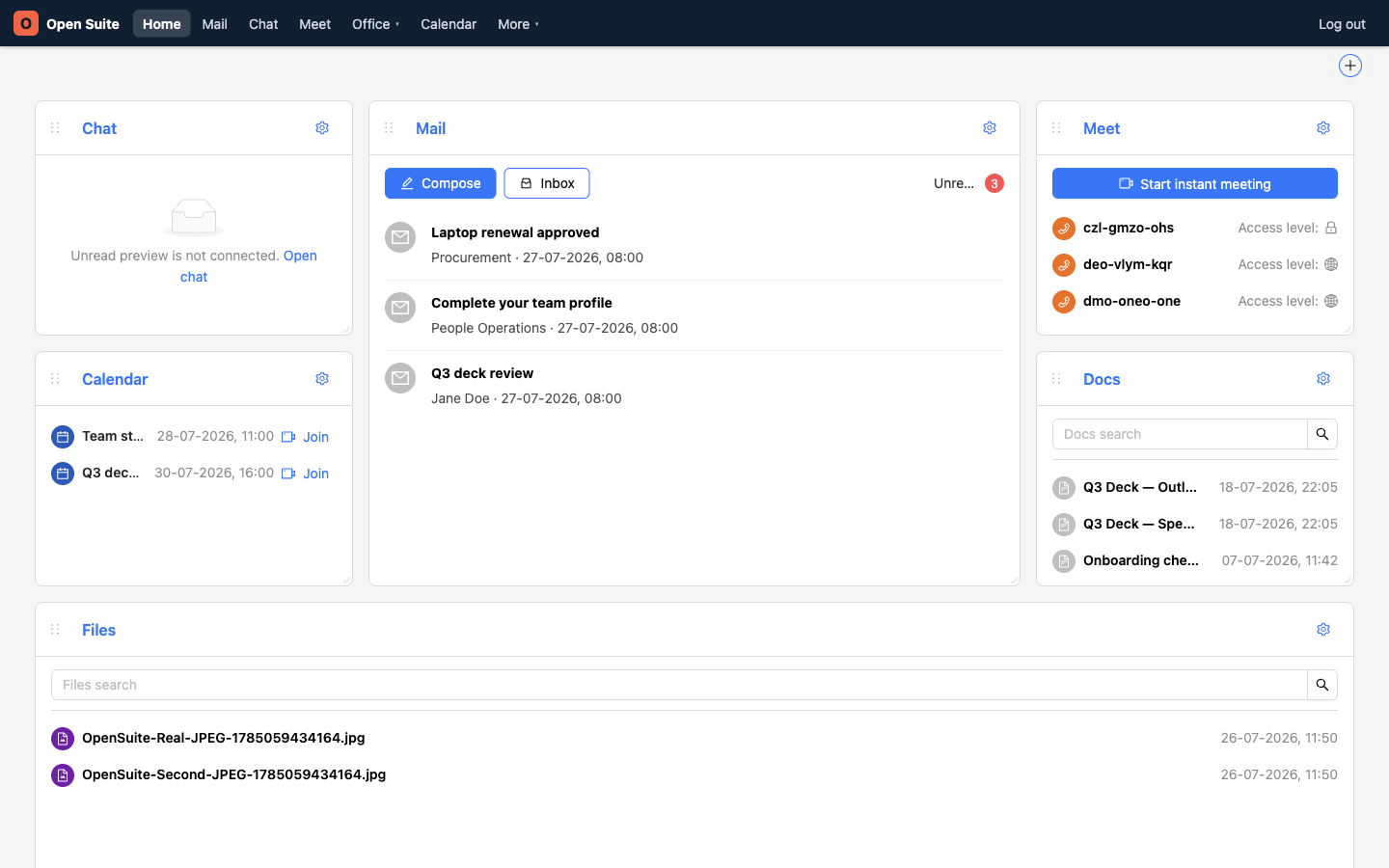
Join opens the Meet link stored in an upcoming event.
Start instant meeting creates a room for an unscheduled call.