Find your way around Open Suite
Open Suite uses one sign-in for the portal and the connected apps. The top navigation is the fastest way to move between tools.
Use the dashboard
The home page collects your current work in one place:
- Chat opens team conversations.
- Mail shows unread messages and opens your inbox.
- Docs shows recent pages from More → Wiki.
- Calendar shows upcoming meetings with join links.
- Meet shows meeting rooms and lets you start a call.
- Files shows recent Office documents and uploaded files.
Swipe or scroll the screenshot to see every detail.
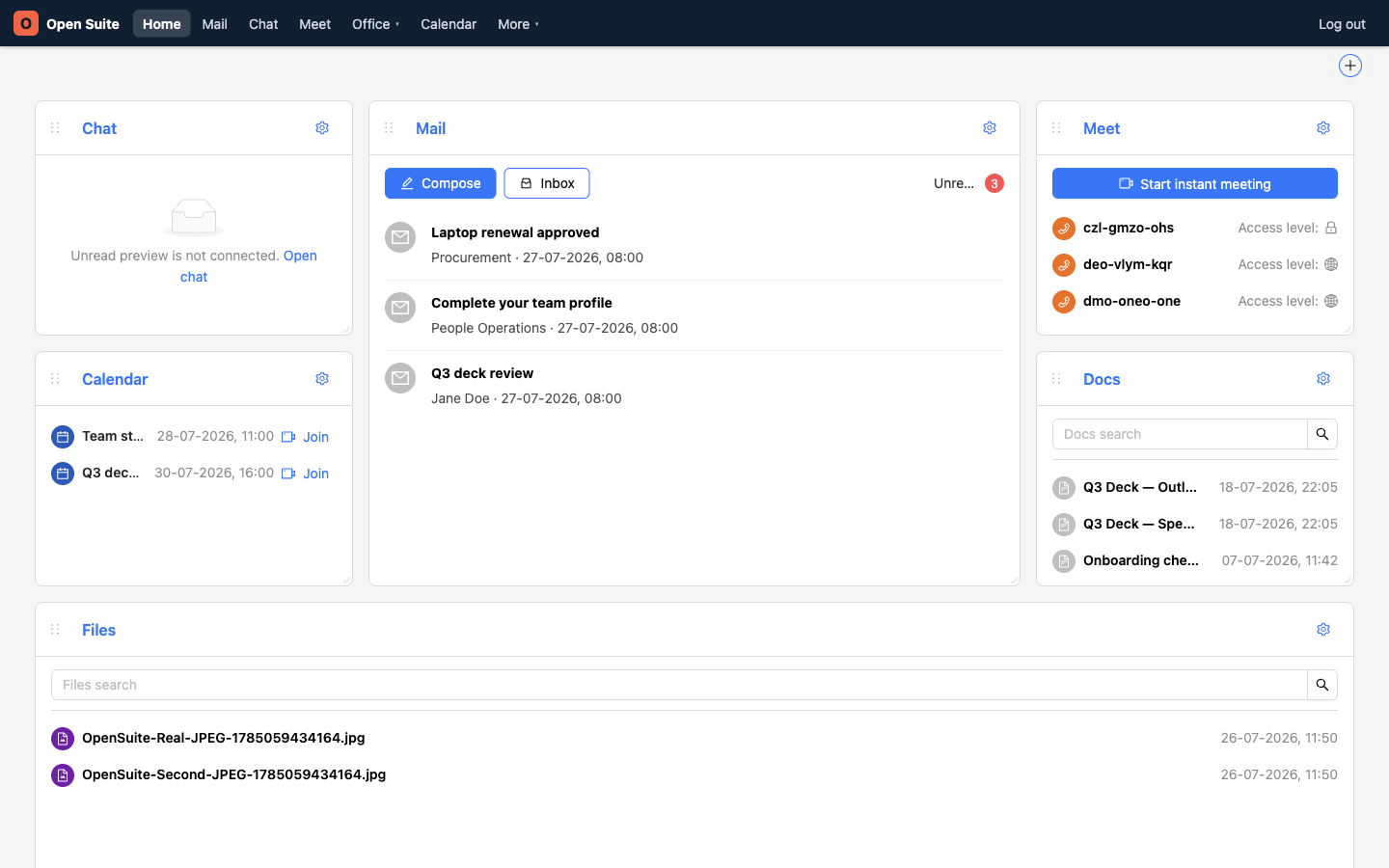
Mail opens your mailbox directly.
Office contains Documents, Spreadsheets, Presentations, Diagrams, and Files.
Calendar opens your full schedule.
More contains Tables, Wiki, and Contacts.
Open Office apps
Click Office in the top navigation, then choose the app you need.
Swipe or scroll the screenshot to see every detail.
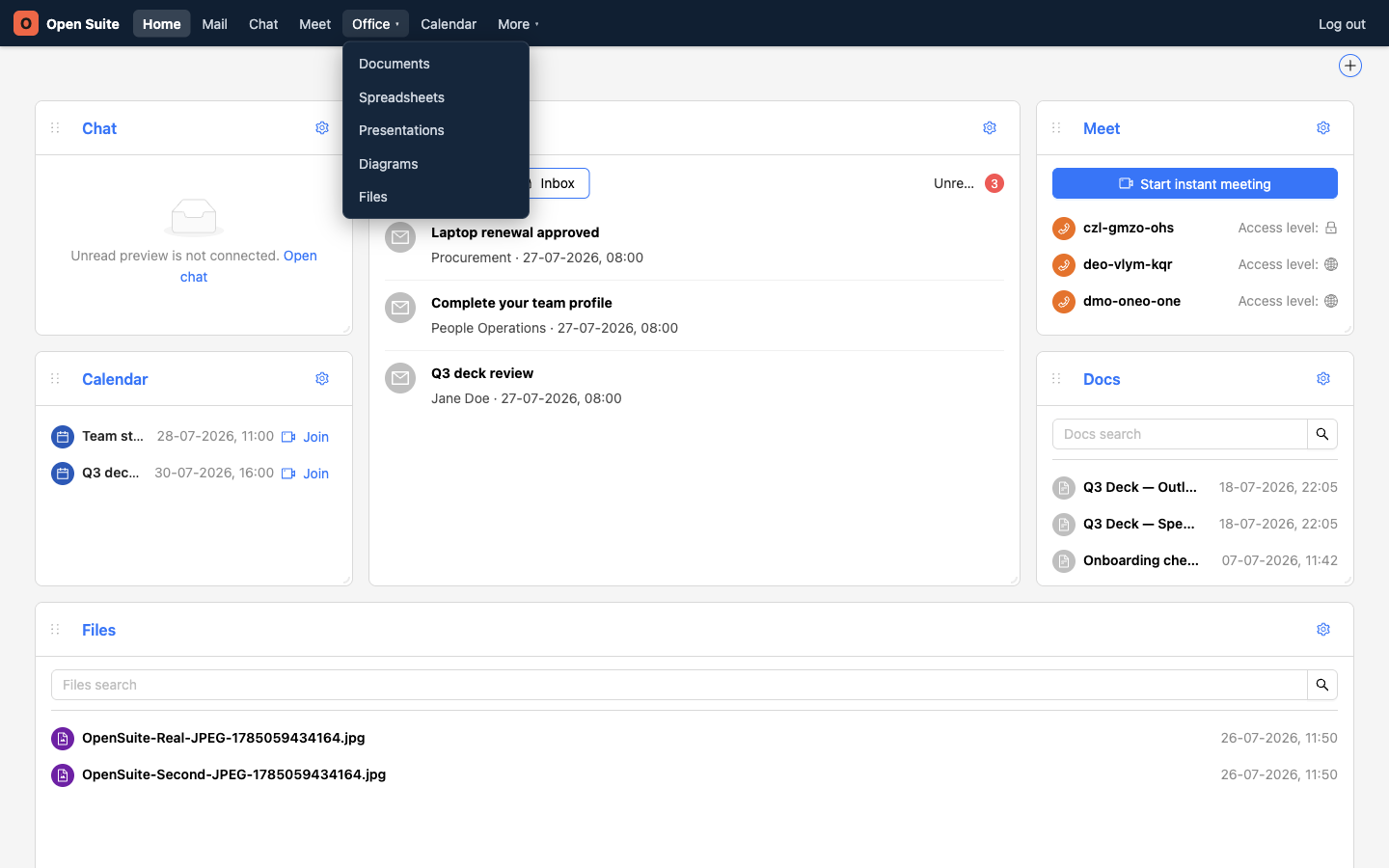
Office opens and closes the app menu.
Documents opens the document workspace.
Files opens folders, uploads, sharing, and downloads.
Use these entries most often:
- Documents for text documents.
- Spreadsheets for tables and calculations.
- Presentations for slide decks.
- Files for folders, uploads, sharing, and downloads.
Pick the right tool
Use this quick map when you know the job but not the app:
| Job | Open this |
|---|---|
| Send or read email | |
| Write or edit a file | Office → Documents or Office → Files |
| Upload, share, or download files | Office → Files |
| Schedule a meeting | Calendar |
| Start or join a video call | Meet |
| Find a colleague's details | More → Contacts |
| Work with structured records | More → Tables |
| Message a team | Chat |
Open the other tools
The remaining top-level links open the other parts of the workspace:
- Mail opens your email inbox.
- Meet opens video meetings.
- Chat opens team chat.
- Calendar opens your schedule.
- More → Tables opens structured data tables.
- More → Wiki opens shared knowledge pages.
- More → Contacts opens people and address books.
If a connected app asks you to sign in again, return to the portal and open the app from the navigation. That refreshes the single sign-on session.