Share files and folders
Use sharing when another person needs access to a file without sending a copy.
Start from Files
Open Office → Files, then find the file or folder.
Swipe or scroll the screenshot to see every detail.
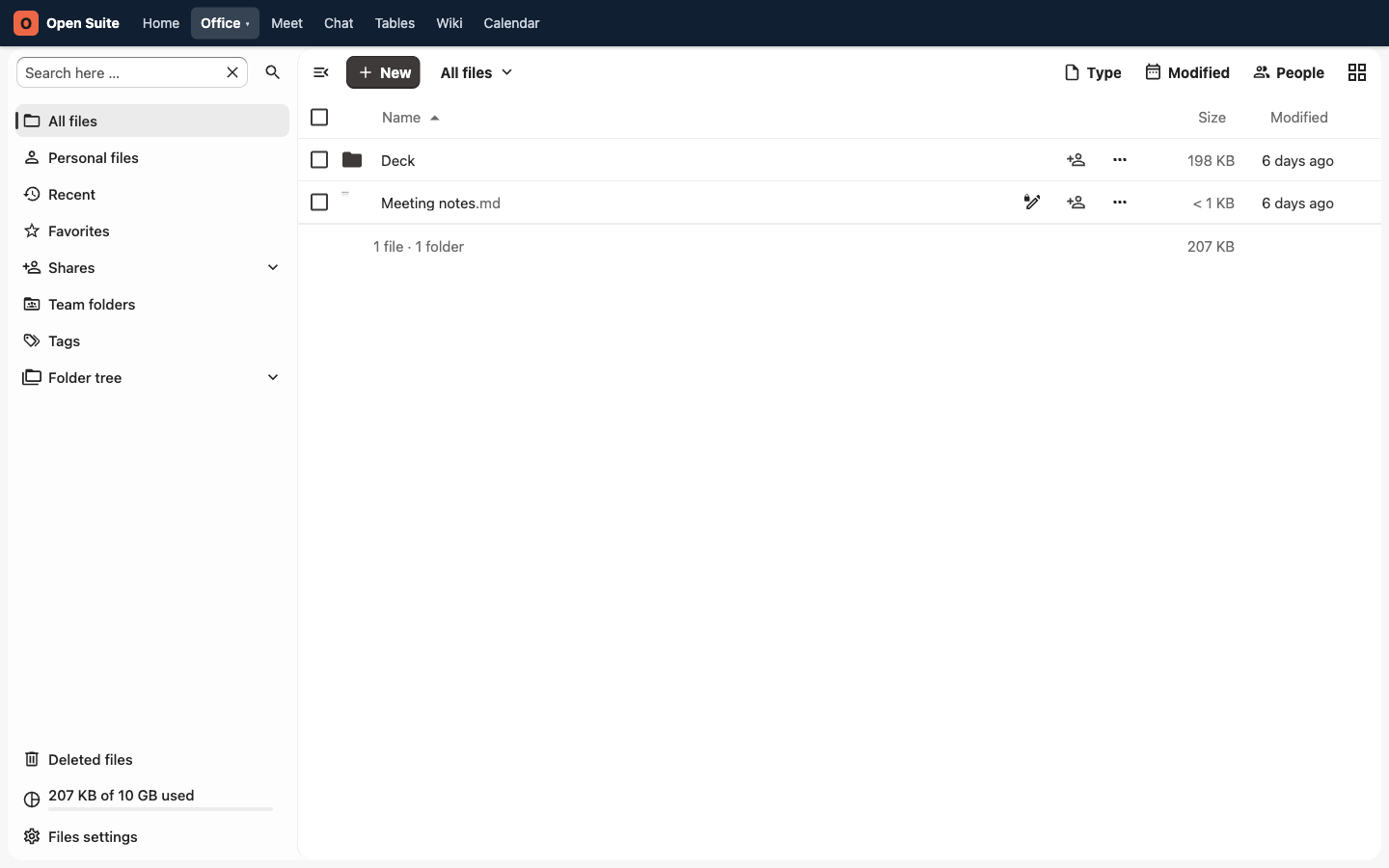
Choose the item by finding its row in the file list.
Share opens sharing options for that file or folder.
Share with a person or group
- Click the share icon on the file or folder row.
- In the sharing panel, search for the person's name or email address, or for a group.
- Select the correct result.
- Open that recipient's permission menu if you need to change whether they can edit or only view the item.
- Check that the recipient appears in the sharing panel, then close it.
The exact permission choices depend on the item and your organization's sharing policy. Use named people and groups for internal work so you can remove access later without changing a public link.
Share a folder
Share a folder when the same group needs access to every file inside it. New items added inside the shared folder are available through that folder's share.
Avoid sharing your top-level Files area; share the smallest folder that contains the work people need.
Share by public link
Use a public link only when someone cannot be added as a named Open Suite user:
- Open the item's sharing panel.
- Find the public-link or link-share section and create a link.
- Set a password, expiry date, and view or edit permissions when those options are available.
- Copy the link and send it through an appropriate channel.
Public-link controls can be restricted by your administrator. Anyone who has an unprotected link may be able to open it, so do not use one for sensitive work.
Stop sharing
Open the sharing panel, open the options for the person, group, or public link, then choose Unshare. The file remains in Files. Access inherited from a shared parent folder must be removed from that parent share by its owner.
Good sharing habits
- Share the folder, not every individual file, when the same group needs all of the work.
- Use edit access only for people who should change the file.
- Remove access when the shared work is complete.
- Do not use public links for sensitive internal work.