Send and manage email
Use Mail to send and receive email without leaving Open Suite. Your mailbox is connected automatically when you sign in.
Open your mailbox
Click Mail in the Open Suite navigation. Mail opens your inbox.
Swipe or scroll the screenshot to see every detail.
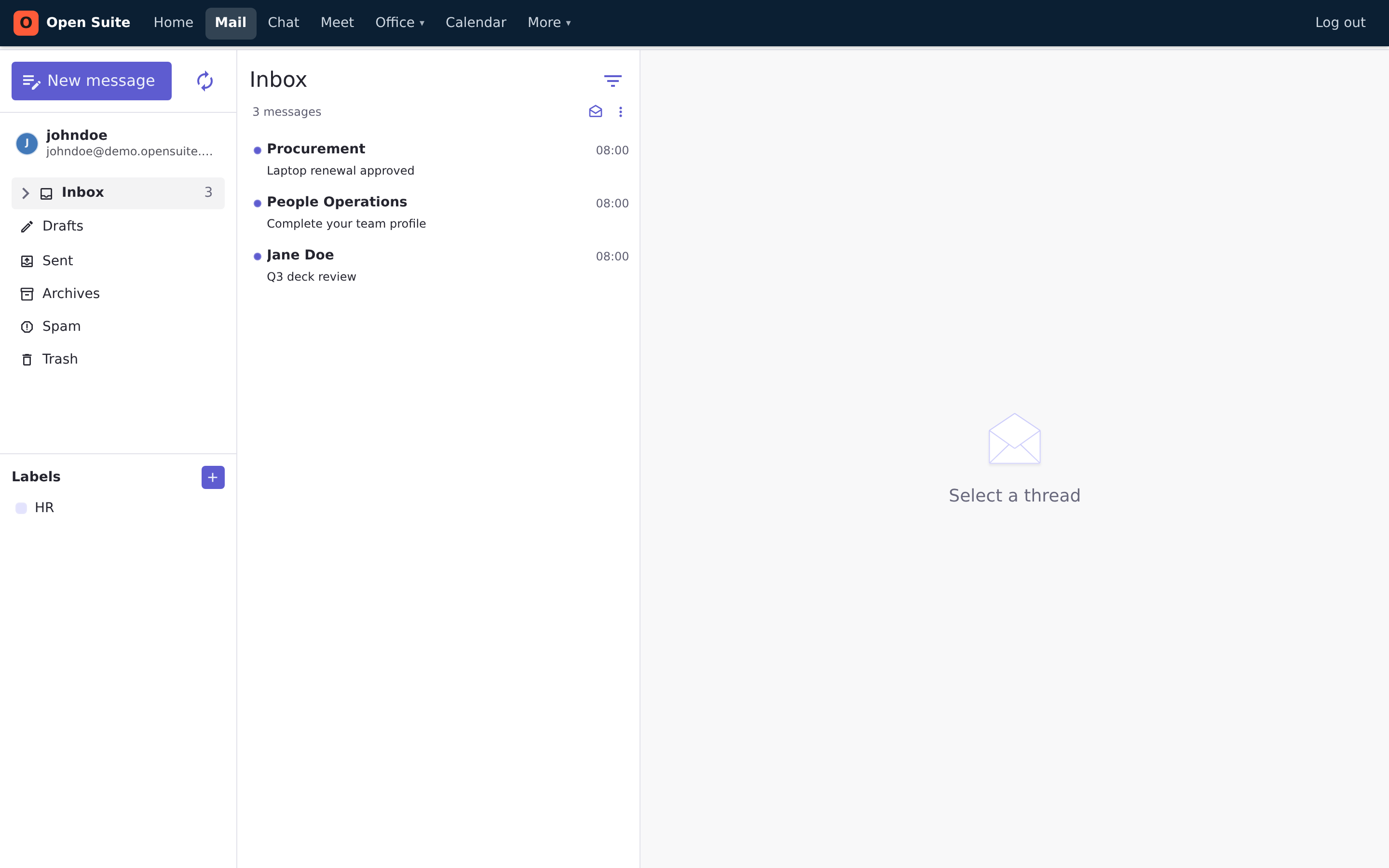
New message starts a new email.
Mail folders contain your inbox, drafts, sent mail, archives, spam, and trash.
Message list shows the sender, subject, and time. A purple dot marks unread mail.
Send an email
- Click New message.
- Enter an address in To, then press Enter. Repeat to add another recipient. Use cc or bcc when needed.
- Enter a short, specific Subject.
- Write your message.
- Optional: click Add attachments or drag files into the attachment area.
- Check the recipients, subject, message, and attachments, then click Send.
Swipe or scroll the screenshot to see every detail.
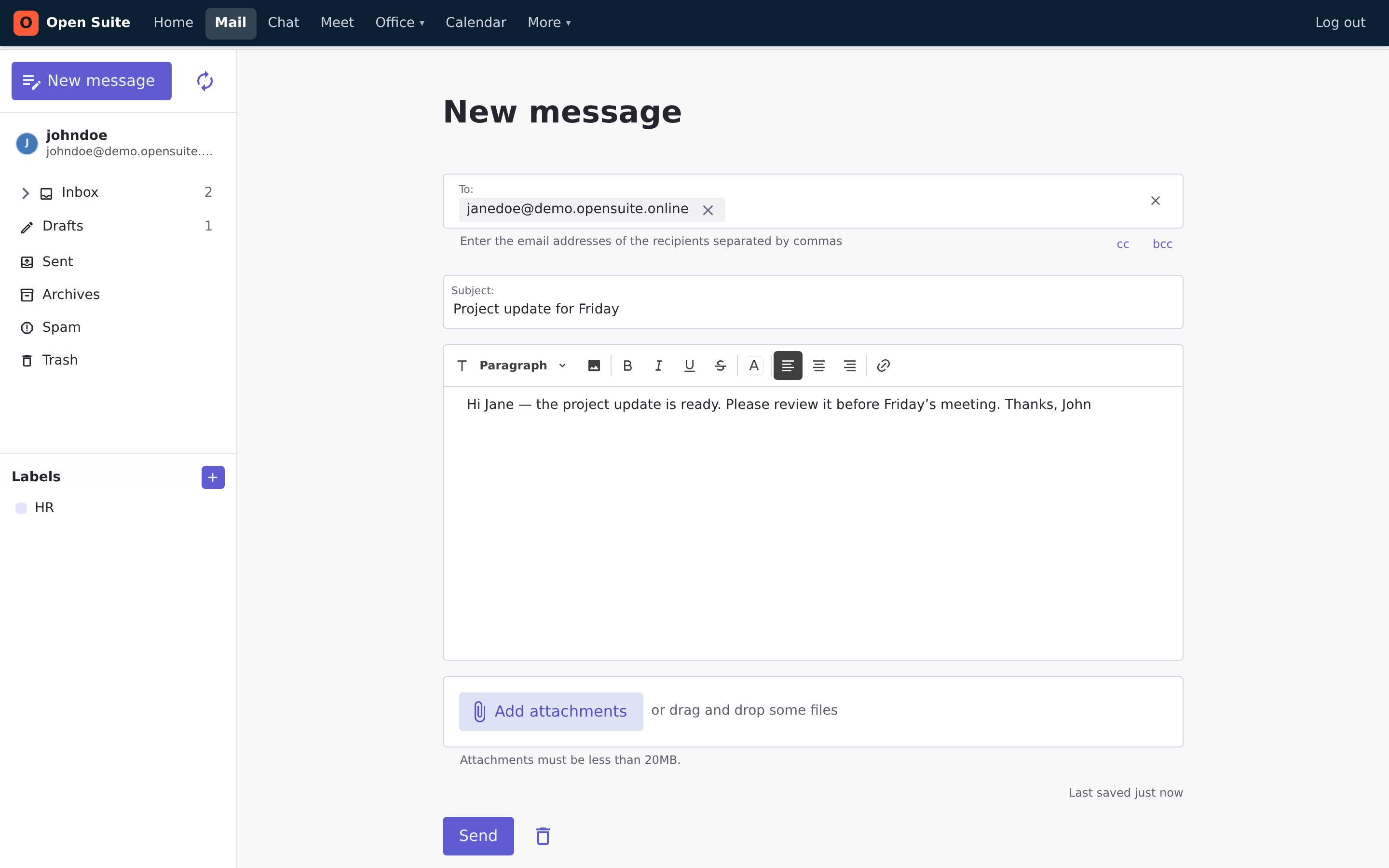
Recipients go in To, cc, or bcc.
Subject tells recipients what the email is about.
Message supports headings, formatting, links, and images.
Attachments can be up to 20 MB each.
Send delivers the email. Use the bin beside it to delete the draft instead.
Mail saves your work in Drafts while you write. You can leave the page and open the draft later without losing the message.
Read and reply to email
- Click a message in the inbox list.
- Read the conversation in the right-hand panel.
- Click Reply to answer the sender, or Forward to send the conversation to someone else.
- Write your message and click Send.
Use the actions above a conversation to archive it, mark it as spam, move it to the trash, mark it unread, or add a label.
Find and organise messages
- Open Inbox, Drafts, Sent, Archives, Spam, or Trash from the left sidebar.
- Use labels for mail that belongs to a team, project, or workflow.
- Use the search field to find a sender, recipient, or words from a message.
- Open Sent to confirm that a message was sent.
If expected mail is missing, check Spam and Trash before asking the sender to resend it.