Work with files
Use Files to upload, organize, preview, share, and download documents.
Open Files
From the portal, click Office → Files.
Swipe or scroll the screenshot to see every detail.
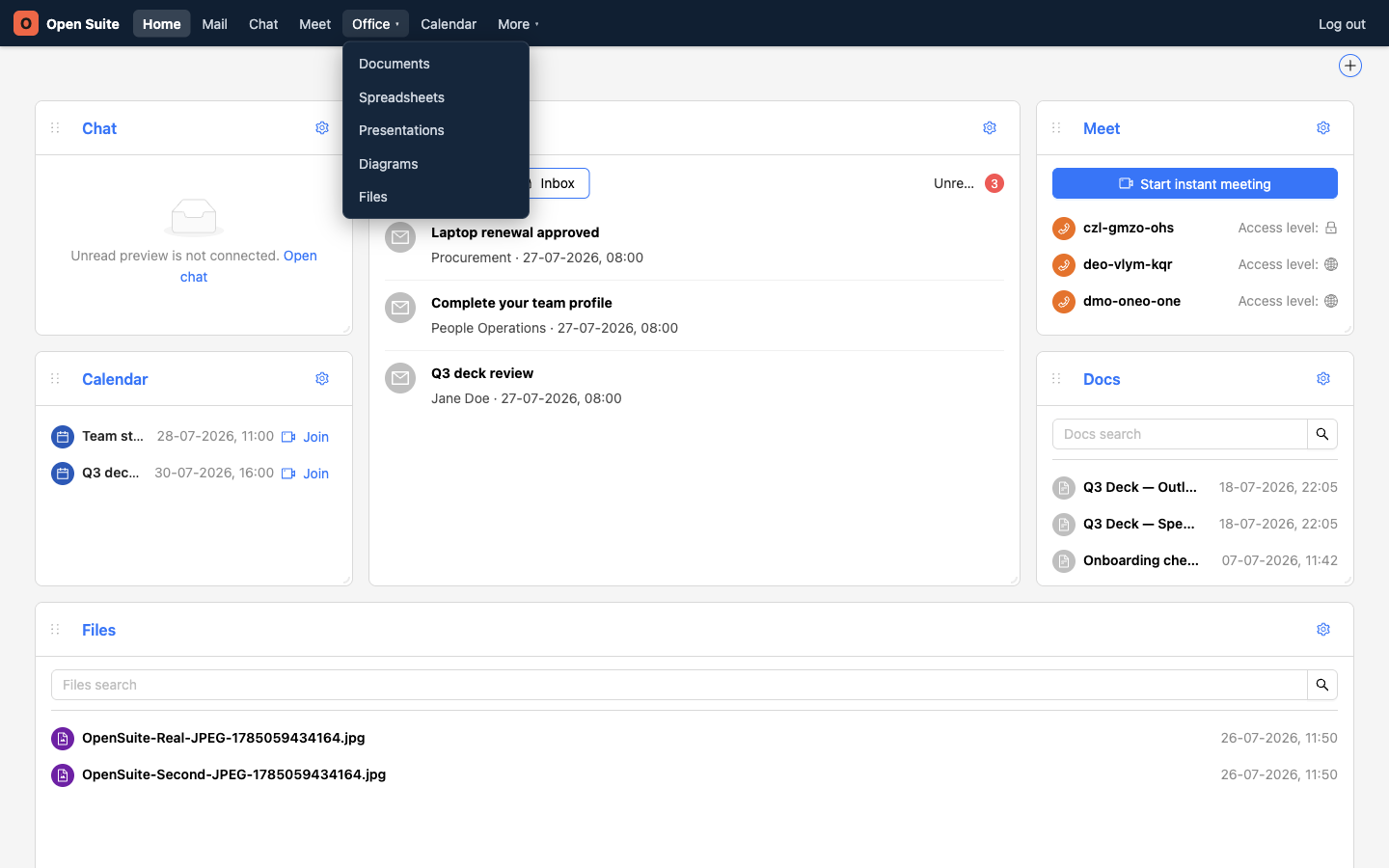
Files opens folders, uploads, sharing, and downloads.
The Files app opens with your folders and documents.
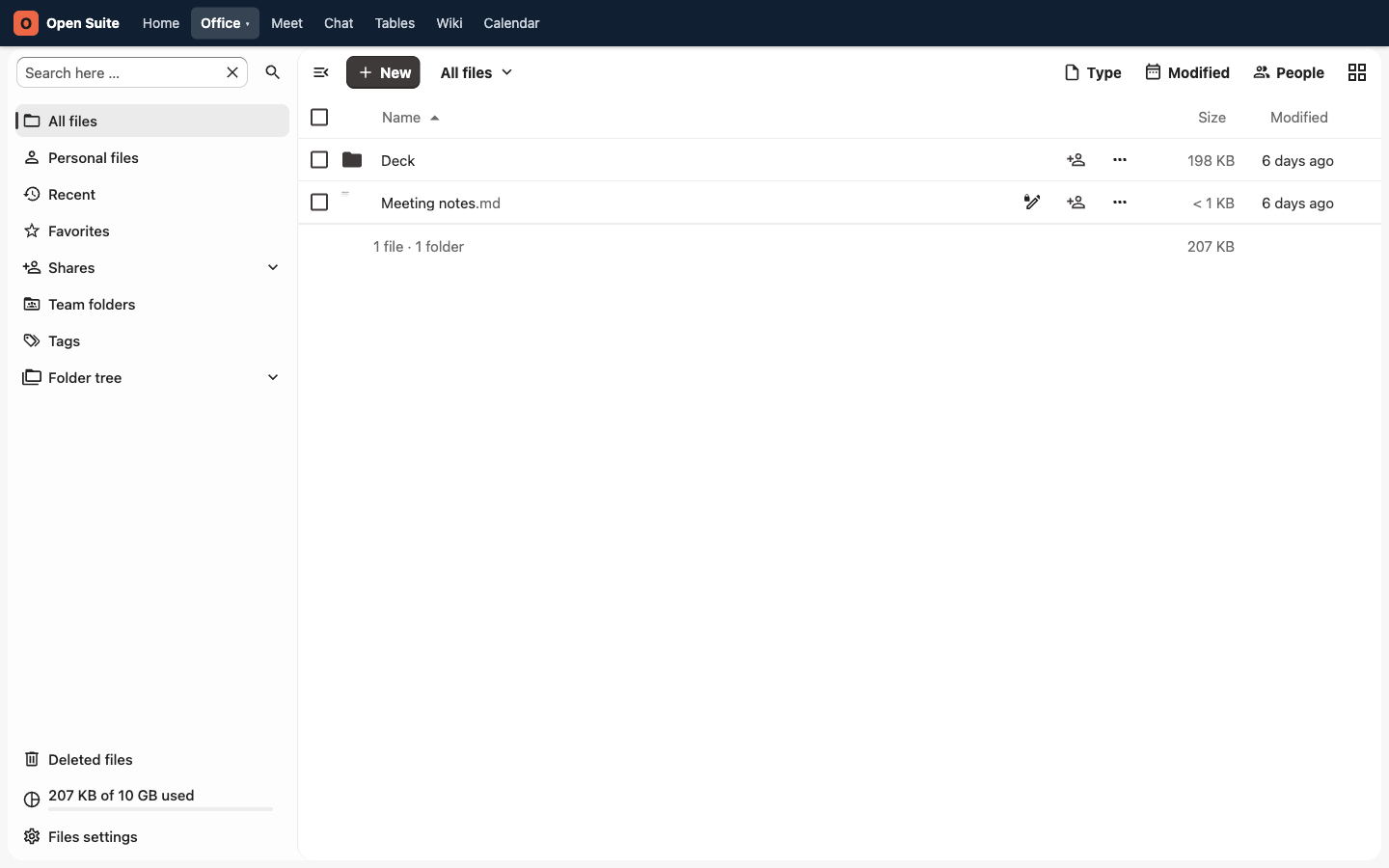
Upload a file
- Open the destination folder.
- Click New.
- Choose Upload files.
- Select the file from your computer.
- Wait for the upload to finish before closing the browser tab.
You can also drag files from your computer into the file list.
Swipe or scroll the screenshot to see every detail.
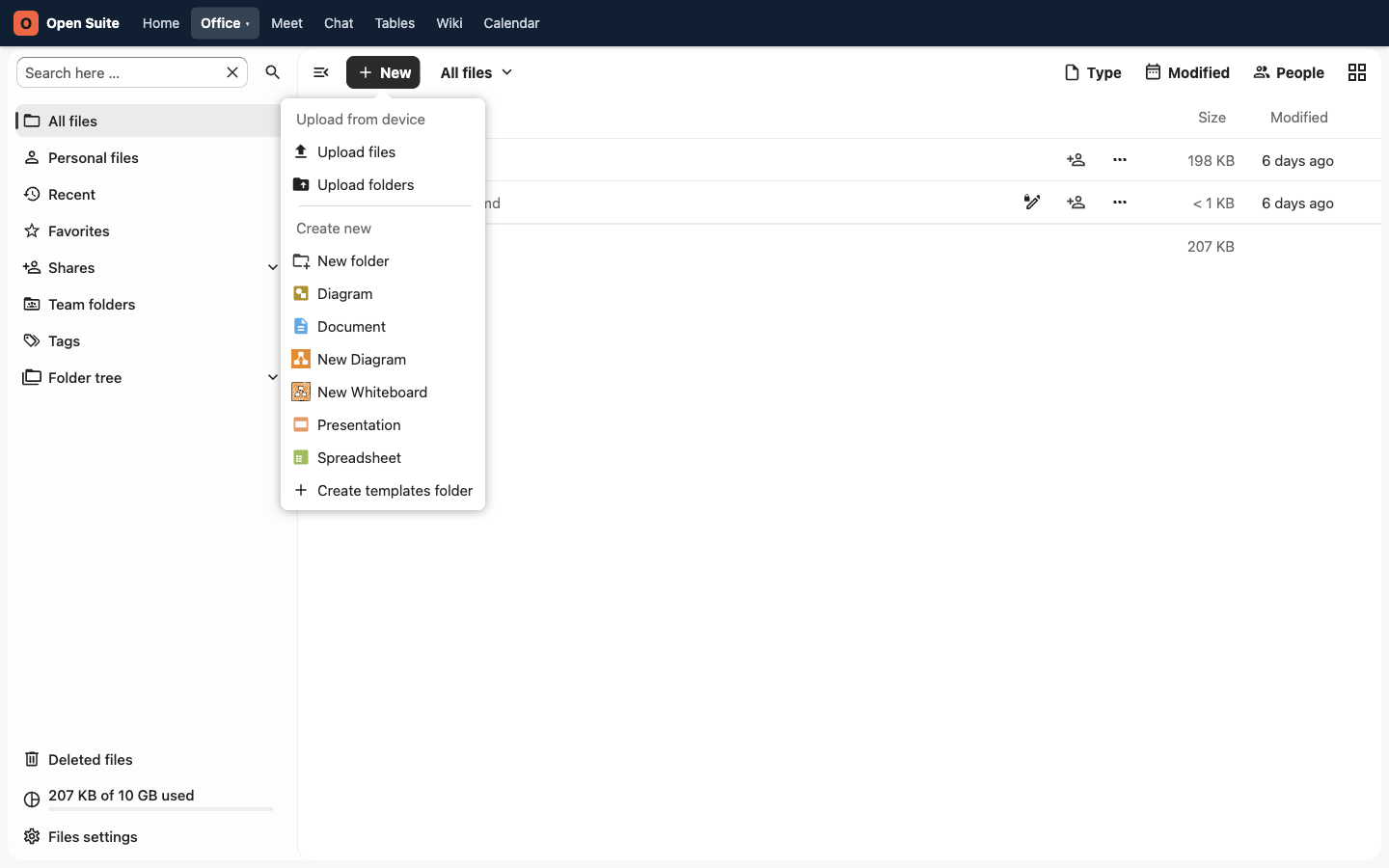
New opens the upload and create menu.
Upload files selects one or more files from your device.
New folder creates a folder in the current location.
Create a folder
- Click New.
- Choose New folder.
- Enter a folder name.
- Confirm the name.
Use folders for teams, topics, or recurring work. Keep names short and specific so they are easy to scan later.
Open or preview a file
Click a file name. Supported documents open in the browser editor; images, PDFs, and other supported formats open in a preview. If a format cannot be previewed, download it and open it with an app on your device.
Share a file
Use the share icon on the file or folder row. See Share files and folders for named sharing, permissions, public links, and removing access.
Download a file
Open the three-dot menu on the file row and choose Download. Your browser saves the file to its downloads location. The action may be unavailable when a share owner or administrator has disabled downloads.